



Next up in our series about new features in the PDF Converter for SharePoint 4.0 and PDF Converter Services, we’ll showcase some of the new Export to PDF View Selection capabilities of our InfoPath converter.
Being able to select which views to export is very useful as quite often different views are used for exporting a form to PDF. Sometimes using the Print View is good enough, but other times you need to export a different view or multiple views to PDF format. There are even occasions where different views are exported depending on the state of the data entered in the form.
As always, the best way to illustrate this is by example.
Use a special view for exporting to PDF
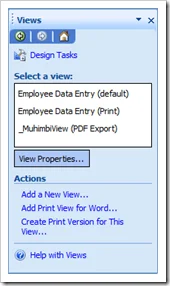
In this scenario we have an Employee Review form with the following 3 views:
- Data entry view: A view used for populating data using the InfoPath client or Forms Services. This is the default view.
- Print View: A special view that is optimised for printing to a network laser printer. This is specified as View 1’s Print View.
- PDF Export view: A separate view that is used to export the InfoPath form to PDF format as it contains some information that should only show up in exported PDF files.
As View 1 is the default view and View 2 is the Print View for View 1, under normal circumstance the 2nd view is used for exporting to PDF. However, we want to use View 3 for this purpose. We can achieve this by starting the name of View 3 with “_MuhimbiView”. The Muhimbi PDF Converter will automatically detect all views that start with this name, export them all and merge them together into a single PDF file. Naturally these views can be hidden from the end user by marking them as such.
This is a great solution if you know beforehand that you will always be exporting the same view(s) to PDF format.
Determine at runtime which views to export
The previous solution, using view names that start with “_MuhimbiView”, works great. However, sometimes you need to export a different view depending on the state of the data.
For example, our Expense Claim form consists of the following Views:
- Data Entry View 1: Used by the employee to report expenses.
- Data Entry View 2: Used by the manager to add comments and additional information.
- PDF Export View 1: The view that is used to export the form to PDF format before the manager has reviewed the form.
- PDF Export View 2: The view that is used to export the form to PDF format after the manager has reviewed the form.
OK, so how are we going to deal with this? Well, here comes the Muhimbi PDF Converter to the rescue! By adding a (hidden) text box named “_MuhimbiViews” (case sensitive and using the default ‘my’ namespace) to any of the views and populating it with the name of one or more comma separated view names, the Muhimbi PDF Converter will automatically pick up these names and export them to PDF format. If multiple views are specified then they are automatically concatenated together.
In addition to adding the “_MuhimbiViews” text field to the form, all the developer of the form needs to do is to add a little bit of logic to the Submit event of the 2 data entry views that specify the correct view name to export in the “_MuhimbiViews” field.
For details about how to dynamically specify which views to convert from your workflow see this post.
View prioritisation rules
To determine which view or views to export, the Muhimbi PDF Converter uses the following prioritisation rules:
- Regardless of how a view or views are selected for export, if the selected view has a Print View specified than that view is given priority.
- Version 4.1 and up: When using the web services interface, any ConversionViews specified in the ConverterSpecificSettings property will be converted. If this property is not set then the following rules will be used to determine which views to convert to PDF. A Web Services example can be found here.
- If a field named “_MuhimbiViews” is found anywhere in the InfoPath form then the content of this field is used to determine which views to export.
- If the previous field does not exist, is empty or the specified view name does not exist then the converter looks at all view names that start with “_MuhimbiView”.
- If none of the previous options apply then the view marked as the Default View is exported.
Do not use Muhimbi’s View selection features in combination with InfoPath's 'Print multiple views' facility. The latter is given priority when converting to PDF.
When the final PDF file is assembled then all selected views are included first, followed by any converted attachments.
Rules when converting to formats other than PDF
As of version 6.0, Muhimbi’s PDF Converter can also convert InfoPath forms to MS-Word, Excel and HTML. There are some exceptions to the way View Selection works for these output formats. For details see this post.
In summary, the new version of the PDF Converter adds flexible View selection features to make the life of InfoPath developers easier. As always, upgrades are completely free. Don’t hesitate to leave a comment below if you have any questions or contact us to discuss anything related to our products.
Labels: Articles, InfoPath, News, pdf, PDF Converter, PDF Converter Services

