



Muhimbi’s range of PDF Conversion products, including the PDF Converter for SharePoint and the PDF Converter Services, has provided some level of PDF/A support since the very beginning. We knew this was going to be important so we even built it into our web service’s object model. However, up until now (version 5.1), any request to output the file in PDF/A format was passed on directly to the underlying converter, which may, or may not, do a good job of sticking to the PDF/A standard (more on this subject below).
Update: As of version 7.0, the Muhimbi PDF Converter also support the PDF/A2b standard.
The converters that support PDF/A1b (not PDF/A2b) natively are:
- MS-Word
- PowerPoint
- MS-Publisher
- Viso
- TIFF
This all all changes with version 5.2 of our software, which allows any PDF file to be post processed and converted to PDF/A1b. More about this later, let’s have a look at the history, and reasons, behind the PDF/A standard first.
Over the last 20 years the PDF document format has grown from a relatively basic file type that displays information on screen as if it were printed on paper, to an all singing and dancing 3D, Audio / Video digital printing format. Although at the moment it is easy and free to download a viewer that can display the latest and greatest content, what about the computers used 50 years from now? Who knows, perhaps the holographic AppleMicroGoogle ™ quantum computers we’ll be using by then won’t even understand the concept of embedded JavaScript, or no one could be bothered to implement it in the version of Acrobat Reader that was rewritten from the ground up after the Great Computer Failure of 2038. All kidding aside, the PDF/A standard was created to go ‘back to basics’ and use PDF for what it was originally intended for and give future computers and operating systems a remote chance of displaying a file’s content similar to how it was originally intended to look.
A good summary of the main aims and rules with regards to PDF/A can be found on the pdfa.org website.
What does PDF/A aim to achieve? PDF/A aims to produce files with static content that can therefore be visually reproduced completely precisely today and in many years time. Files that are subject to long-term archiving should work regardless of the device or operating system used. The future usability of PDF/A files must also be guaranteed in a manufacturer-independent manner – and this includes Adobe. PDF/A is a ‘complete’ format. This means that PDF files that comply with the PDF/A standard are complete in themselves and use no external references or non-PDF data. The PDF/A-1 standard is based on PDF/A specification 1.4, which means that it works within the technical scope of the functions available in Acrobat 5.
A range of rules must be observed when generating PDF/A files in order to meet the goals named above. For example, when generating PDF/A, it is important to embed all fonts and clearly specify all colors. Forms, comments, and notes are only permitted to a limited extent. Compression is allowed as a general rule, but LZW and JPEG2000 are excluded. Transparent objects and layers (Optional Content Groups) are not permitted. PDF/A uses rules for metadata that are based on XMP (Extensible Metadata Platform). Finally, a PDF/A file must identify itself as such.
Please note that you need the OCR and PDF/A Archiving for SharePoint add-on license in addition to a valid PDF Converter for SharePoint or PDF Converter Services License in order to use this functionality.
Muhimbi’s interpretation of the PDF/A standard
As is generally the case with these kinds of standards, there are as many PDF/A validators as there are interpretations of the specification. The validator we use internally for testing purposes is the one that comes with Adobe Acrobat Pro X. I am sure there are stricter validators, but if Acrobat Pro says a document validates fine then I am sure there is a pretty good chance it can be opened 50 years from now.
In the screenshot below you can see the validation results of a PowerPoint file that was converted to PDF by the Muhimbi PDF Converter and subsequently post processed for output as PDF/A1b. As you can see it validates perfectly well. The same is true for conversion to PDF/A2b.
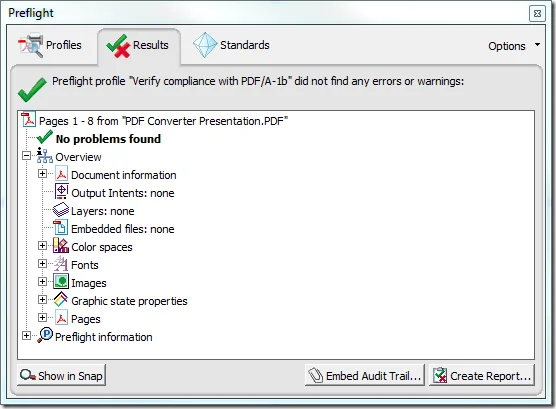 PDF/A File generated by the Muhimbi PDF Converter
As you can see in the screenshot below, the same document saved by PowerPoint itself in PDF/A format does not validate successfully.
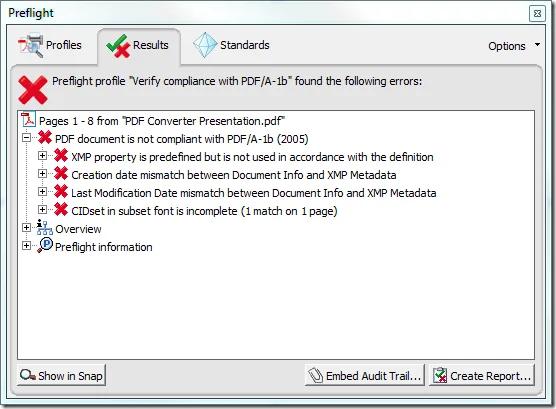 PDF/A File generated by PowerPoint
Clearly the file post-processed by the Muhimbi PDF Converter validates better, but that doesn’t mean that the one generated by PowerPoint cannot be displayed 50 years from now. The validator checks many rules including important ones such as font embedding, but also rules that are perhaps not so important like the fact that the Modification Date stored in the PDF is exactly the same as the one stored in the XMP meta-data.
Configuring the Muhimbi PDF Converter to use PDF/A
The Muhimbi PDF Converter relies on 3rd party software to carry out the PDF/A post processing step. Fortunately this software is free to download and install for both individuals and organisations. The actual use of the software is less than trivial, but our software takes care of all the complexities.
Installation of this software is optional and only required if you intend to carry out any PDF/A post processing. The steps are as follows:
- If not already installed, install the Muhimbi PDF Converter for SharePoint (or PDF Converter Services) version 5.2 or newer. (7.0 for PDF/A2b support)
- Download the latest GPL Release from the Ghostscript website. Depending on your hardware and operating system you will need to download either the 32 or 64 bit version. Muhimbi has tested the PDF/A1b post processing with versions 9.04 and later. PDF/A2b requires Ghostscript 9.06 or later.
- Install Ghostscript in a location of your choice on every server that runs the Muhimbi Conversion Service. If you accept the default location, or the default location on a different drive, then the Muhimbi PDF Converter will automatically detect Ghostscript’s file path.
Once Ghostscript has been installed you are ready to go, providing you access our Web Services based interface from your own software and the PDFA.PostProcessing configuration value discussed below is set appropriately (details for use with SharePoint can be found further below). Just set the web service’s ConversionSettings.PDProfile property to PDF_A1B and any converter that doesn’t natively support PDF/A1b output will automatically send the generated PDF file to the post processor. However, depending on your exact needs you may want to update a number of settings in the Muhimbi Conversion Service’s config file.
- Open ‘ Muhimbi.DocumentConverter.Service.exe.config’ in your favourite text editor. The file is stored in the same directory where the Muhimbi Conversion Service has been installed in. You can find a shortcut to this folder in the ‘ Muhimbi Document Converter’ group in your start menu.
- Change the following settings if needed:
- Ghostscript.Path: Leave the path empty to auto detect the path. When manually specifying the path include the executable as well, e.g. "E:\Program Files\gs\gs9.04\bin\gswin64c.exe"
- PDFA.PostProcessing: Not all converters are able to provide native PDF/A1b output. Use this setting to post process any generated PDF file. Valid values are ' All' (Post Process files generated by all converters, including the ones that are supposed to already support PDF/A1b), ' WhenNeeded' (Post process files for only those converters that do not support native PDF/A1b output) or ' None' (Do not post process files generated by any converters. This is the default option). Please note that these values will only be used if the output format is set to PDF_A1B, either in the web service call or via the global ' ConversionSettings.ForcePDFProfile' config value.
- PDFA.RasterizeTransparentContent: Define how transparent content is dealt with during conversion to PDF/A. The default setting (False) removes all transparency. If you wish to retain transparent objects then set this value to True, which will result in pages being rasterized resulting in considerably larger and slower PDF files.
- ConversionSettings.ForcePDFProfile: Override the web service’s ConversionSettings.PDFProfile value during conversion. Leave empty to use the setting specified in the web service call. Accepted values are members of the Muhimbi.DocumentConverter.WebService.Data.PDFProfile enumeration or an empty string. For example: 'PDF_1_5' (Use PDF Version 1.5) or 'PDF_A1B' (Use the PDF/A standard for long term archiving).
- Restart the Muhimbi Conversion Service from the Windows Services Management Console.
If you don’t directly interact with Muhimbi’s Web Services interface, but rather use the SharePoint Front End functionality that comes with the PDF Converter for SharePoint, e.g. workflow activities or manual PDF Conversion, then you MUST set the ForcePDFProfile configuration value to PDF_A1B or PDF_A2B. Please note that that this is a global switch that forces all functionality provided by our product to output in PDF/A format. This may have side effects when applying PDF Security. When using SharePoint Workflows you can also specify the PDF Profile on a conversion by conversion basis, see this post.
Sample code to convert PDF Documents to PDF/A using our web services interface can be found here. If you don’t wish to use Ghostscript, or if your organisation already uses a different PDF to PDF/A converter that you wish to integrate with, then please contact us.
Issues and limitations
At Muhimbi we like to under promise and over deliver, so interpret the following in that light. We prefer to be upfront about any issues you may encounter to prevent unexpected surprises at a later date.
At this moment in time we are aware of the following issues:
- 64 bit only: The 32 bit version of Ghostscript 9.04 contains a bug that may interfere with PDF/A output. As a result you will need to install the 64 bit version. In other words you can only run the entire solution successfully on a 64 bit machine running a 64 bit Operating System. This bug has been fixed in ‘post 9.04 versions’.
- Merged Documents: When documents are merged using the Muhimbi PDF Converter, and subsequently post processed for PDF/A output, then Acrobat’s validator shows the ‘ CIDSystemInfo and CMap dict not compatible' validation error. It doesn’t happen for all document types and we are confident this message does not have any significant side effects.
There are other side effects inherent to the PDF/A1b standard that we can’t do anything about. For example, as transparency is not supported, any documents that use (semi) transparent objects may not look the same as the source document. Similarly, because fonts MUST be embedded in PDF/A compliant documents, the resulting PDF file may be larger than expected, although in many cases you will find them to be smaller than the source file.
We love working with our customers and we’ll do our very best to solve any problems you may experience, so please drop us a line if you have any questions or require assistance.
Labels: InfoPath, pdf, PDF Converter, PDF Converter Professional, PDF Converter Services, PDF/A

